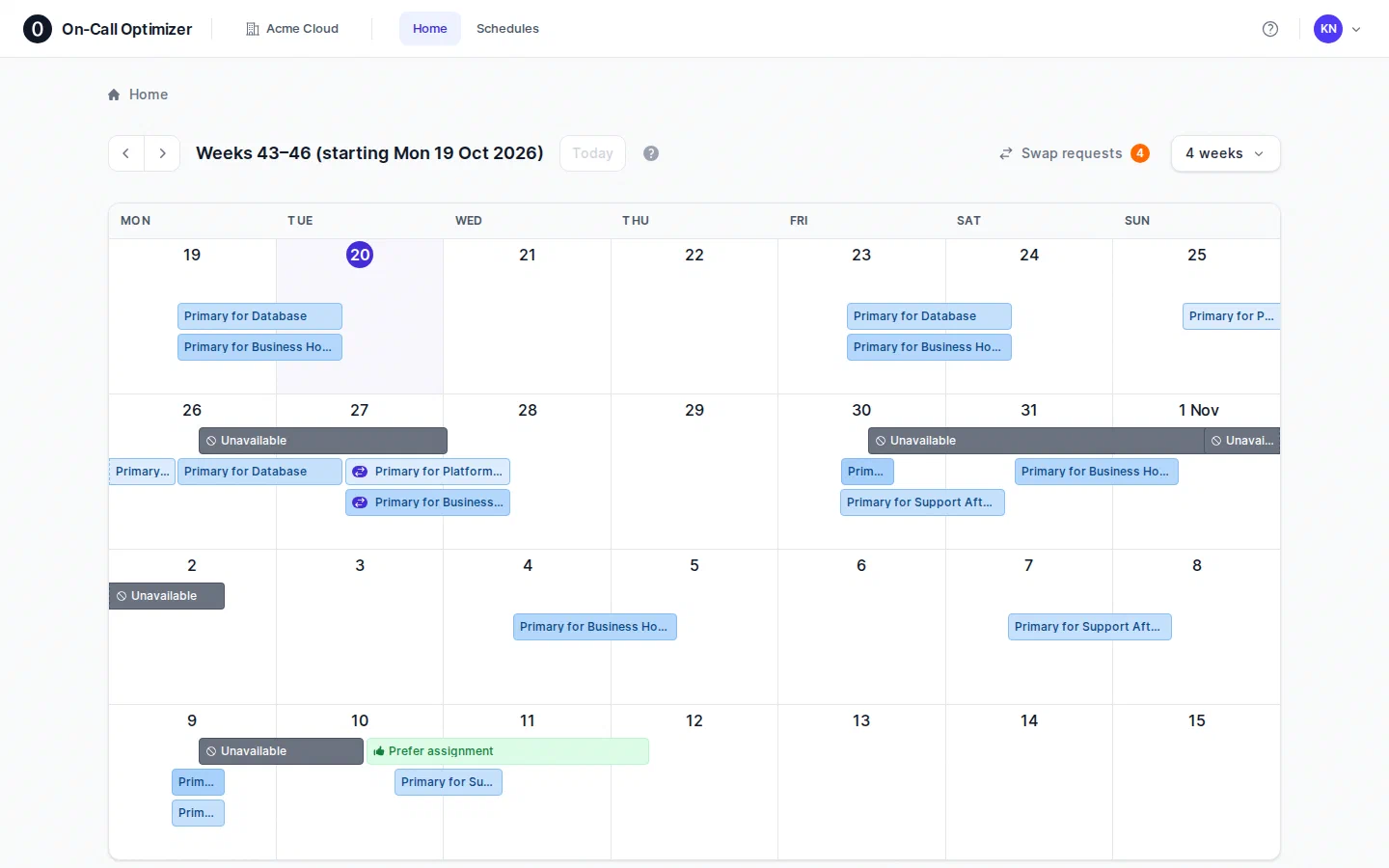
On-Call Optimizer’s refreshed interface is coming next week. This short video introduces the key changes.
Transcript
Hi, I'm Matt, founder of On-Call Optimizer.
Today I'm excited to introduce you to our refreshed interface. It incorporates lots of your feedback, and makes managing schedules and swapping shifts simpler and faster than ever before.
Let's start on Home, where you land when you sign in.
The sidebar is gone and navigation is now along the top. Your calendar connections have moved under the profile menu.
The calendar now defaults to a four-week view, focused on what's coming up, not what's already passed.
If you prefer the old month-based calendar view, use the menu at the top right of the calendar to switch back.
In that menu you'll also see new options to control which events are shown on the calendar.
On Home, the event layers default to your upcoming shifts and the availability imported from your connected calendars.
Hover over or click on any event for details, or to start a swap request.
Swap requests are now integrated with the calendar.
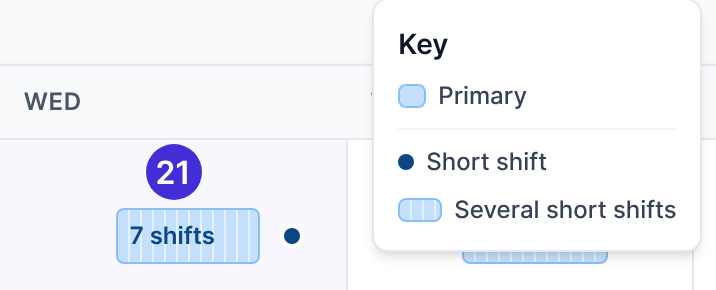
Shifts with a pending swap request are clearly marked on the event and in the popup.
A summary of all swap requests sits just above the calendar, to the left of the view menu.
A click in the popup or on the summary opens the swap panel, so you can view and respond without leaving the calendar.
A request waiting for your response takes you straight to the options, while a swap you've requested shows the progress of responses.
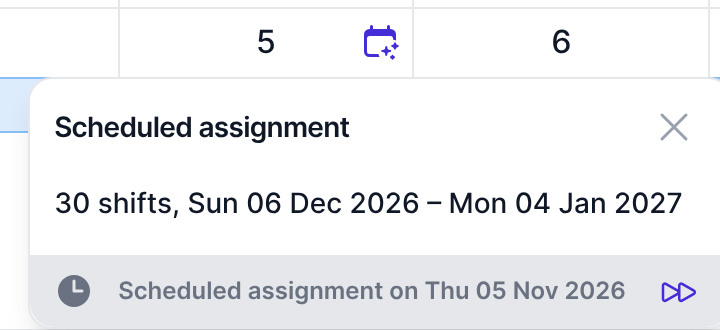
The calendar for a schedule shows all assigned shifts, as well as those planned for the next scheduled assignment.
Availability information for all schedule members, which was previously hidden in a separate tab, is now an event layer that you can enable on the main calendar.
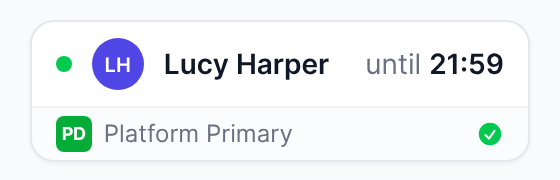
A new card on the right-hand side of the schedule header shows who's on call right now, and the status of any connected integrations.
The swap indicators and the summary are also present, providing visibility into swap requests for any member's shifts, not just your own.
The Reports tab provides quick access to the latest evaluation of the schedule's balance and penalties applied by other rules.
And the Timeline tab lists the assignments that contributed shifts to the schedule or are awaiting confirmation.
If you're an admin, make sure to check out the next video covering configuration and settings.
Otherwise, thanks for watching. Check our docs for full details,
and if you have any feedback or questions, I'd love to hear from you. Email me: matt@oncall-optimizer.com. Thanks!
For schedule admins: See the admin-focused video for more details on configuration and schedule creation.
Based on a clean new look, the refreshed interface has something for everyone:
- Simpler navigation
- Improved calendar displays
- The ability to initiate changes and swaps without leaving the calendar
- A smooth guided schedule setup flow
Read on for details of the major changes, followed by a quick reference table of what’s moved and changed at the end of the post.
Calendars focused on the future
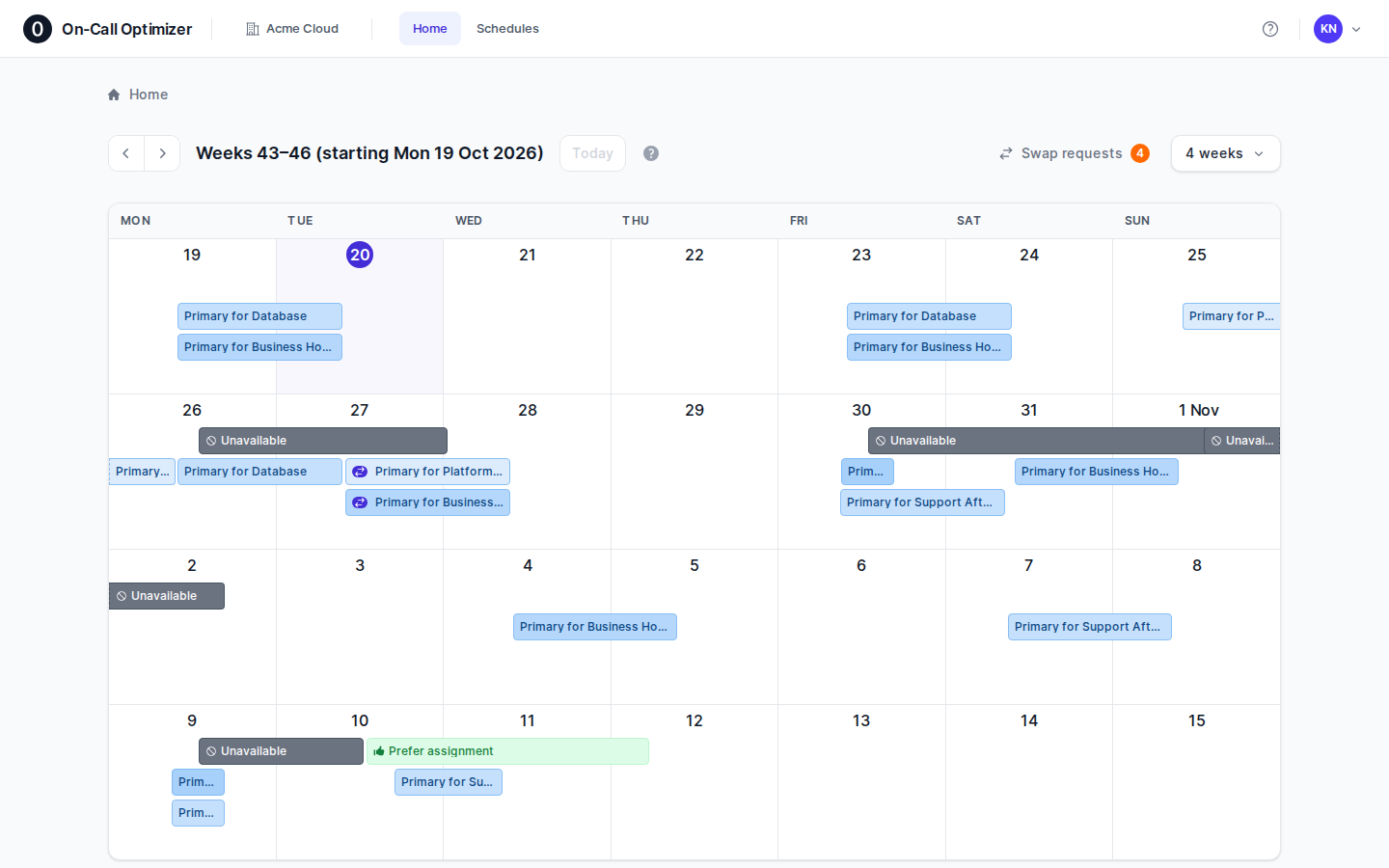
Calendars now open on a 4 weeks view that starts with the current week. On-call is about what’s coming, so screen space is now focused on the weeks ahead rather than the days of the month that have already passed. If you prefer the familiar layout, Month view is only a click away in the view menu above the calendar, along with 1 week and List.
The same menu also lets you choose the layers each calendar shows, and there’s more flexibility than previously:
- Home: your shifts, your past shifts and your availability.
- A schedule: its assigned shifts, the planned shifts its next assignment will fill, past shifts, and the availability of its members.
- An assignment: its shifts, the rest of the schedule around them for context, and member availability.
Turn layers on or off to suit how you use each calendar, and each one remembers your choice.
Your schedule at a glance
A schedule’s calendar now provides faster access to key information.
Swap shifts without leaving the calendar
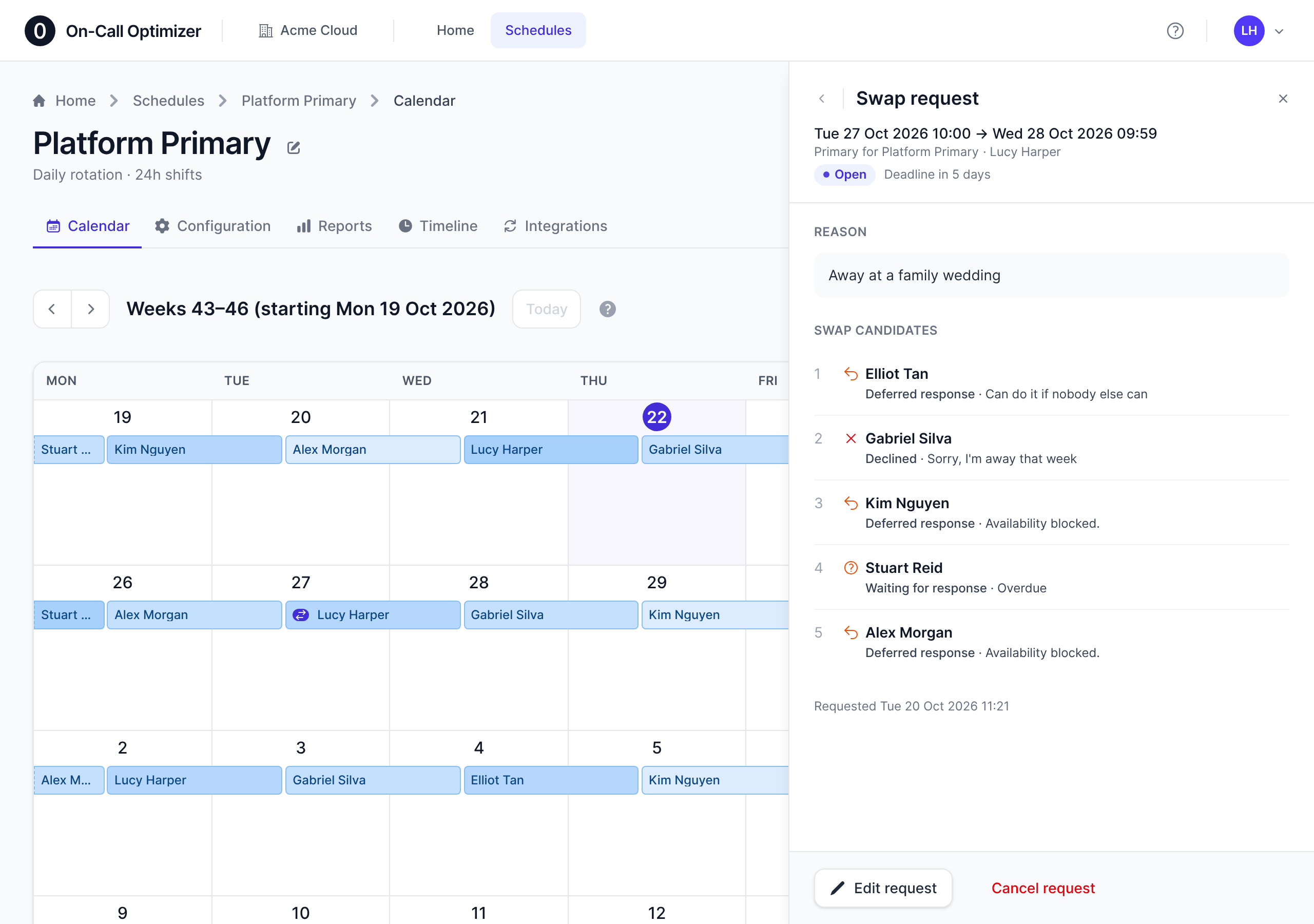
Swap requests have been moved to a panel integrated with the calendar. You can initiate, respond and track the status of swap requests all while keeping upcoming shifts in view.
- See where your request is up to. The Swap requests panel shows each person asked and whether they’ve responded, and lets you edit or cancel the request.
- Answer requests in one place. Requests waiting for your response are listed in the same panel, and links in swap emails, Slack messages and notifications open it directly. Take the shift, offer one of yours in return, or decline.
- Know when it’s urgent. The Swap requests count in the calendar toolbar is coloured by how soon the shifts start. On a schedule’s calendar it lists that schedule’s open requests.
The Timeline tab
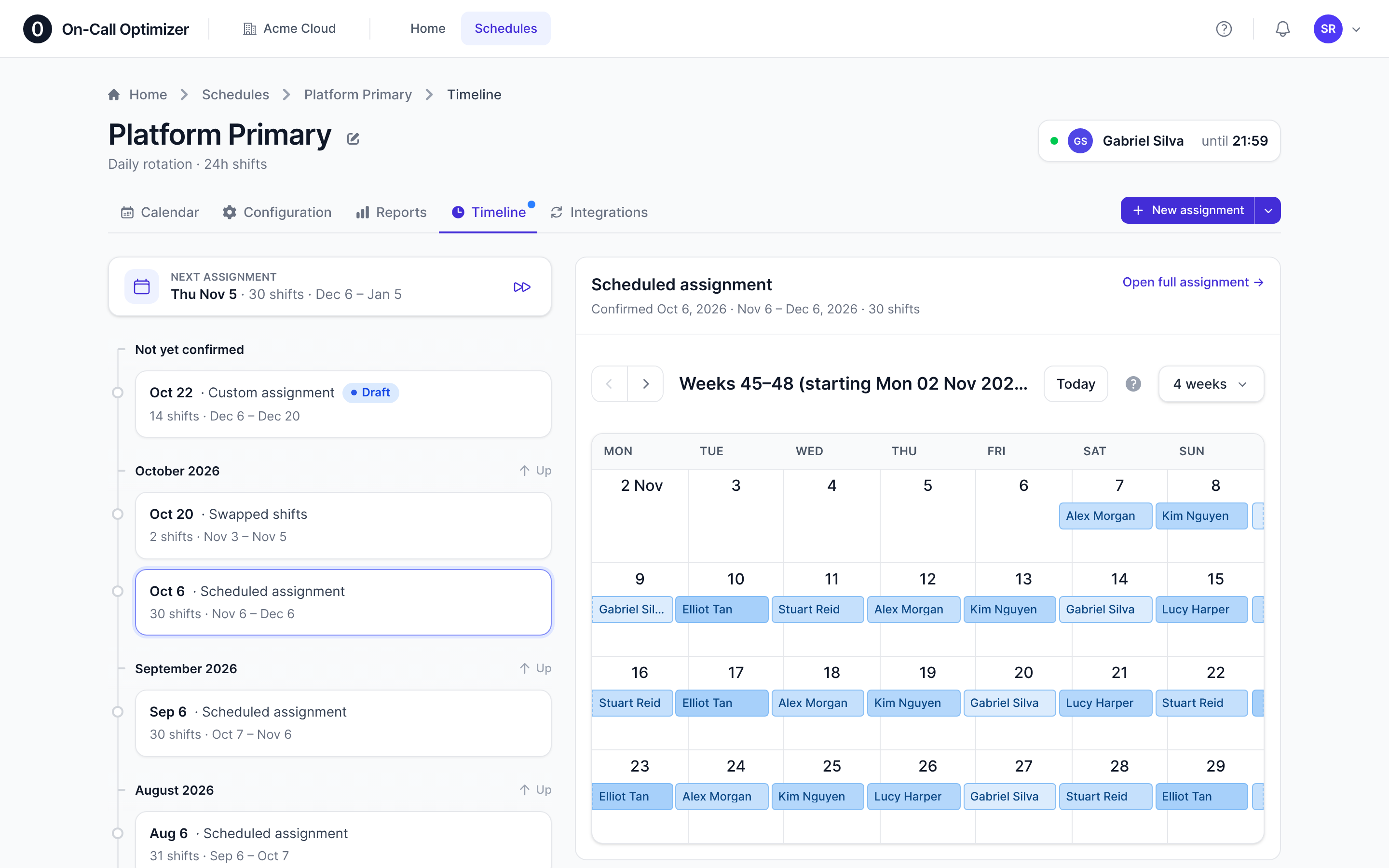
Every schedule now has a Timeline tab: a new view for understanding how your schedule developed over time. It shows every assignment in order, as well as a summary of the next scheduled assignment and any awaiting confirmation.
Select a timeline entry to see the shifts that were assigned and when it was confirmed, or open the full assignment to see evaluation details and explore alternatives.
To support the timeline, assignments are now described by where they are in their lifecycle: scheduled (planned to run on a date), draft (generated, waiting to be confirmed) and confirmed and how it was created, for example “Scheduled assignment”, “Custom assignment” or “Swapped shifts”.
Set up a schedule in minutes
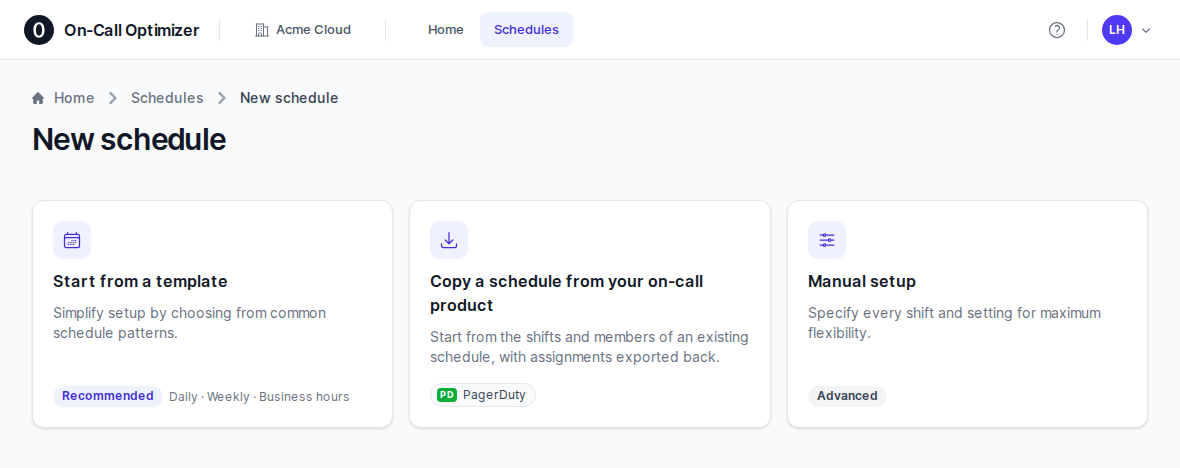
Create new schedule is now simpler while also delivering increased flexibility. Win-win!
- Start from a template: Daily, Weekly, Business hours only, or Business and after-hours, our recommended approach for curated shift patterns.
- Copy a schedule from your on-call product: shifts and members are copied, and new assignments are exported back to it.
- Manual setup, when you need full control over every shift and setting.
Whichever approach you choose, you’ll be guided all the necessary steps, including Members and Final settings, where you can choose the timing of the first assignment.
A new confirmation page (Ready to go) summarizes what’s been created and provides helpful suggestions of what to do next.
Improved consistency throughout the app
Alongside these major features, we’ve brought consistency to every page: one design, one set of controls, and clearer, plainer language, so whatever you’re doing in On-Call Optimizer, it works the way you expect. Workflows are smoother too, with welcome states that guide new users, such as a short walkthrough on Home for connecting their calendar, so the availability your schedules rely on is in place from day one.
Where things are now
Most of what you used before has moved rather than changed. If you’re looking for something, start here:
| You used to go to | Now go to |
|---|---|
| The left sidebar | The top bar: Home and Schedules, your organization’s name, the ? menu and your account menu |
| Docs, What’s New and Help in the sidebar | The ? menu: Documentation, Changelog and Support |
| My profile and My availability in the account menu | Profile and Availability in the account menu |
| The theme switcher in the header | Theme in the account menu |
| Calendars in the sidebar | Calendars in the account menu |
| The swap request setting on your profile | The bottom of the Calendars page |
| Swap Shifts in the sidebar | Your shift on the calendar, and Swap requests in the calendar toolbar |
| Your upcoming shifts | The List view of the Home calendar |
| A schedule’s Overview tab | The schedule’s Calendar tab |
| A schedule’s Members tab | Configuration, then the template’s Members tab |
| A schedule’s Assignments tab | The schedule’s Timeline tab |
| The Evaluation of a schedule’s live assignment (member balance) | The schedule’s Reports tab |
| Assignment preferences, on the assignment settings page | Configuration, then the template’s Settings tab |
| A schedule’s Destinations tab | The schedule’s Integrations tab |
| On-Call Products in the sidebar | Your organization’s name, then On-call products |
| Messaging in the sidebar | Your organization’s name, then Messaging |
| Copying a schedule from an on-call product’s page | Schedules, then Create new schedule |