Create a schedule
Set up a new On-Call Optimizer schedule from a template, a copy of an existing schedule, or from scratch.
Every new schedule is set up with the same short guided flow. You choose how to start, then work through four steps: Shifts, Members, Final settings and Ready to go. Here is the whole flow, starting from the Weekly template:
Steps in this screencast
- On New schedule, choose Start from a template.
- Pick a template, here Weekly. Set the handover day, time and time zone, then click Continue to members.
- Add the members shifts are shared between, choose who is Assignable, and click Continue.
- Name the schedule, check when the first shift and first assignment happen, and click Create schedule.
- The schedule is live. Ready to go shows when the first shifts will be assigned.
Choose how to start
Go to Schedules and click Create new schedule. The New schedule page offers three ways to start:
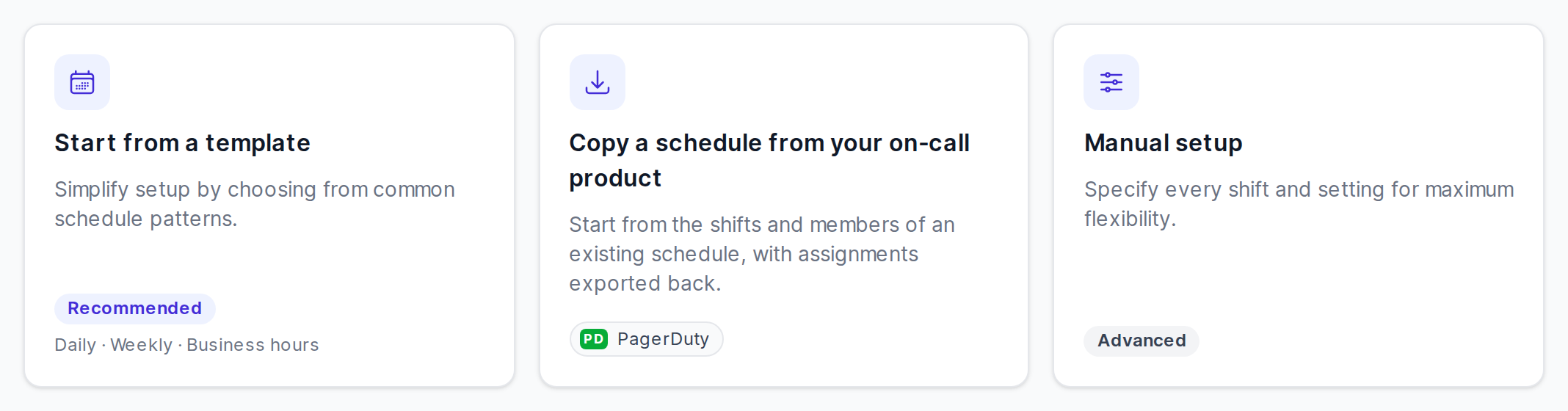
- Start from a template (recommended): pick a common shift pattern and On-Call Optimizer fills in the shifts for you. This is the quickest way to get going, and you don’t need an on-call product.
- Copy a schedule from your on-call product: copy the shifts and members of an existing schedule (e.g. in PagerDuty). Assigned shifts are exported back to it. Follow the Integrate an existing schedule guide for this path. If no on-call product is connected yet, the card shows Connect now.
- Manual setup (advanced): set every shift yourself, for patterns the templates don’t cover.
Step 1: Shifts
From a template
If you started from a template, choose one of these patterns:
| Template | Shifts |
|---|---|
| Daily | One member covers 24 hours, handing over at the same time every day. |
| Weekly | One member covers a whole week, handing over on the same day each week. |
| Business hours only | Weekdays 9am to 5pm. Nobody is on call overnight or at weekends. |
| Business and after-hours | Separate day and after-hours shifts every day. |
Set the handover day or times and the time zone (it starts as UTC), then click Continue to members. For Daily, you can also turn on Share weekend shifts out separately so everyone gets a fair share of weekend days.
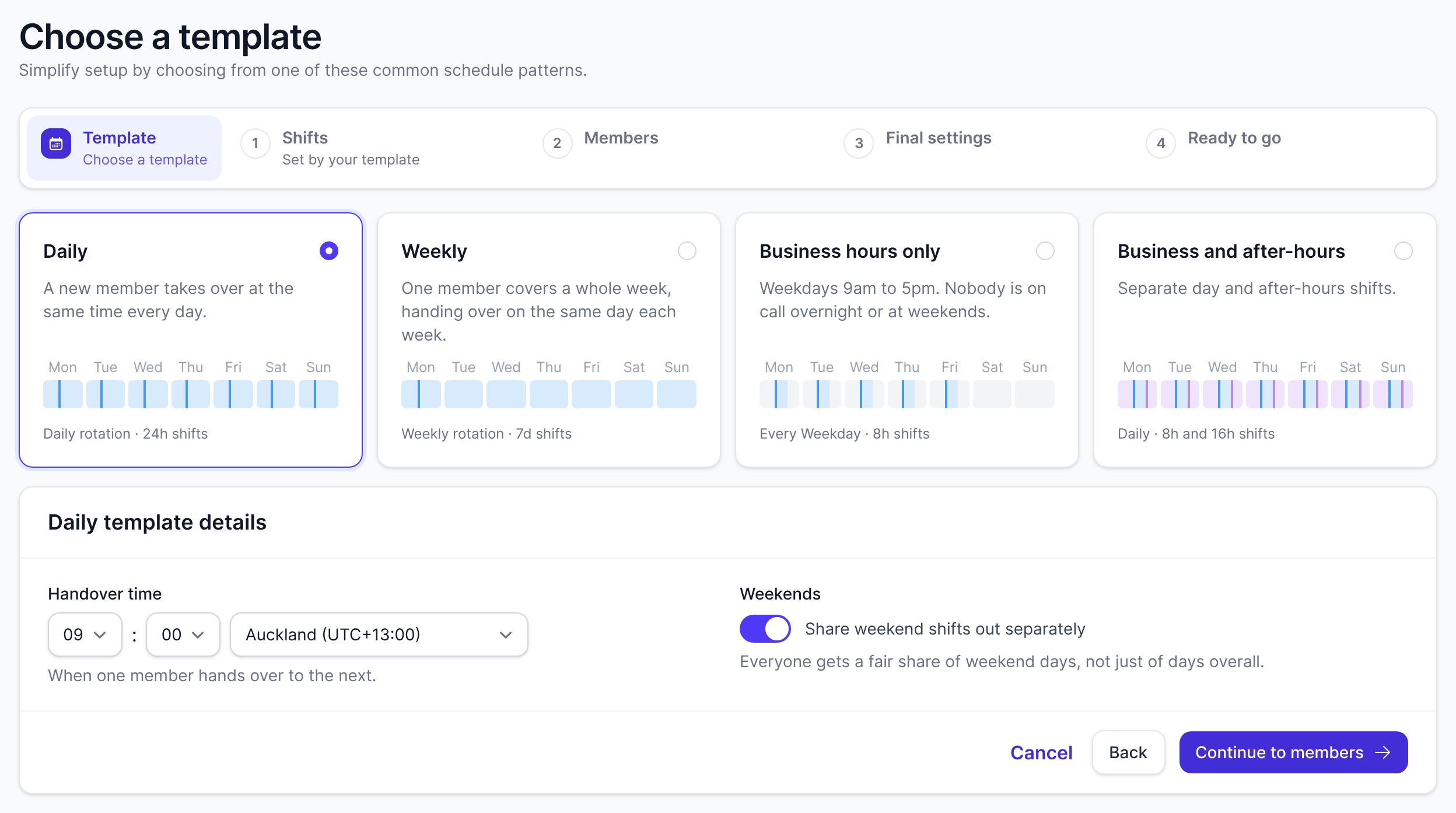
The template fills in the Shifts step for you, so you go straight to Members. You can open Shifts from the step header at any time to change the shifts, for example to add a secondary assignee. See shift configuration for all the options. Patterns that need more than one schedule (e.g. follow the sun) are described in the example configurations.
Manual setup
If you chose Manual setup, the Shifts step opens. Choose the time zone under Times are in, add a row for each shift with its Start day, Start time and assignees (click Add shift for more rows), then click Continue.
Step 2: Add members
On the Members step, add the people who can be assigned shifts on this schedule:
- Next to Add, choose people who are already in your organization from the Choose existing member… list.
- To add people who haven’t used On-Call Optimizer yet, click Invite members (organization admins only) and enter their email addresses. They are invited to your organization and added to this schedule.
- Set each member’s Role (Admin, Member or Viewer) and whether they are Assignable.
- Click Continue.
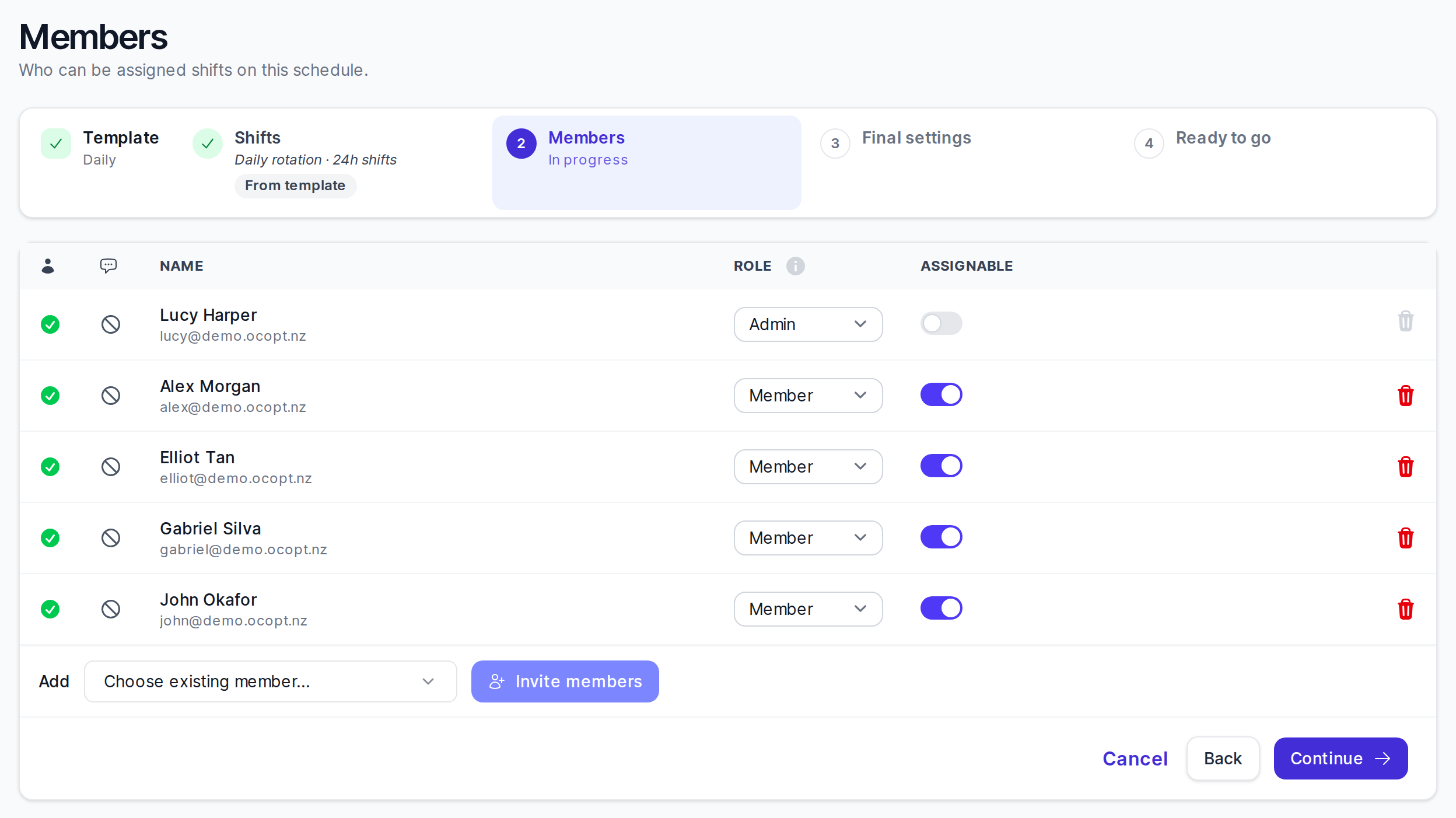
When you continue, any member with an email address who isn’t yet in your organization is sent an invitation. Invited members follow the user onboarding guide to sign in and connect their calendar. See schedule members for more about roles.
Step 3: Final settings
On Final settings you name the schedule and choose when it starts:
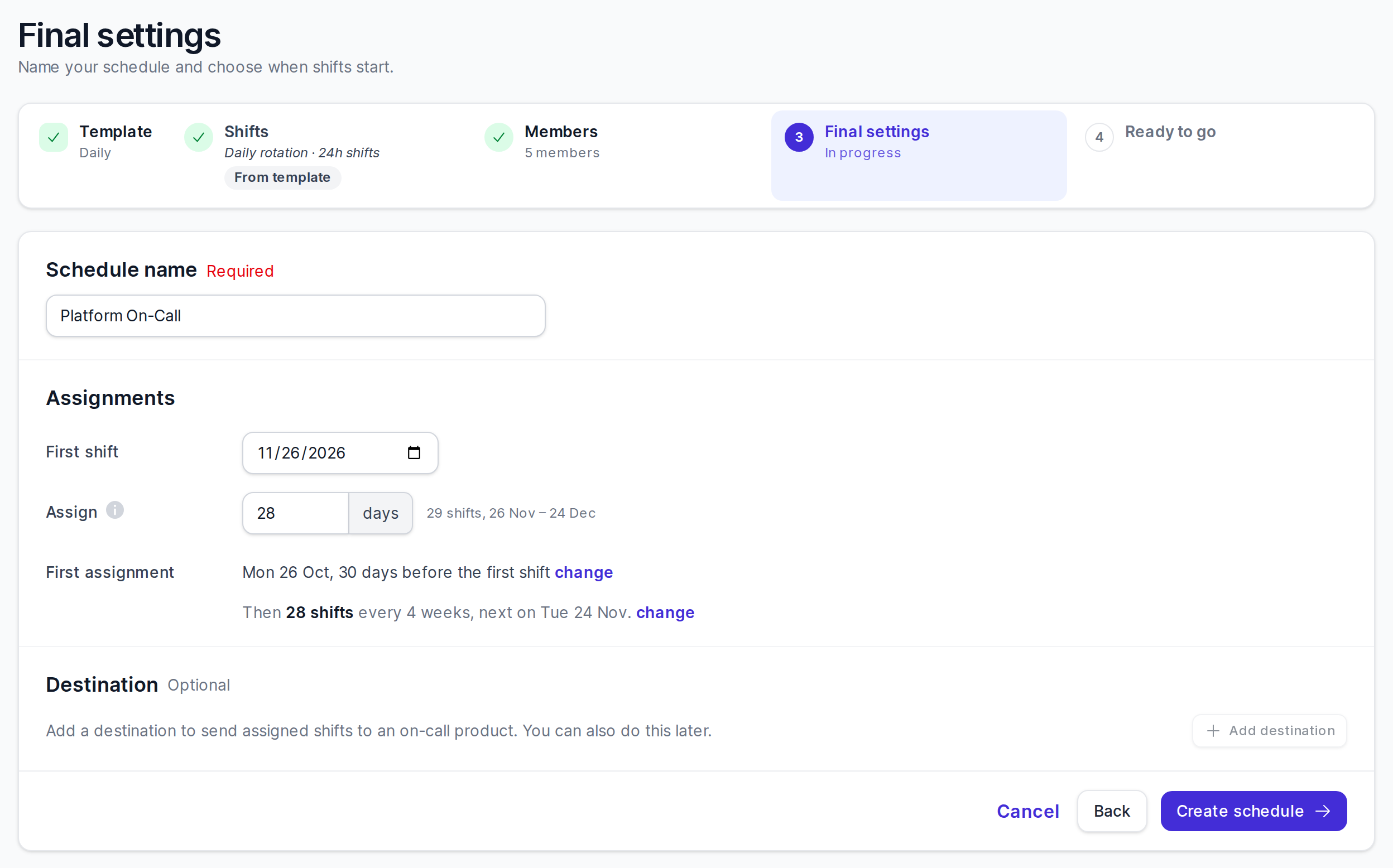
- Schedule name: required.
- Assignments:
- First shift: the date the first shift falls on or after. It is suggested a week plus 30 days from today, which gives members time to connect their calendars.
- Assign: how many days of shifts each assignment covers.
- First assignment: when On-Call Optimizer assigns the first shifts. By default this is 30 days (the horizon) and one day before the first shift. Click change to pick a different date.
- Destination (optional, shown when an on-call product is connected): an on-call product schedule to export assigned shifts to. You can also add one later from the schedule’s Integrations tab.
Click Create schedule.
Drafts
Step 4: Ready to go
The schedule is now live. The Ready to go page shows when the first shifts will be assigned, a summary of the schedule, and suggested next steps such as exporting shifts, turning on a calendar feed, and connecting your own calendar.
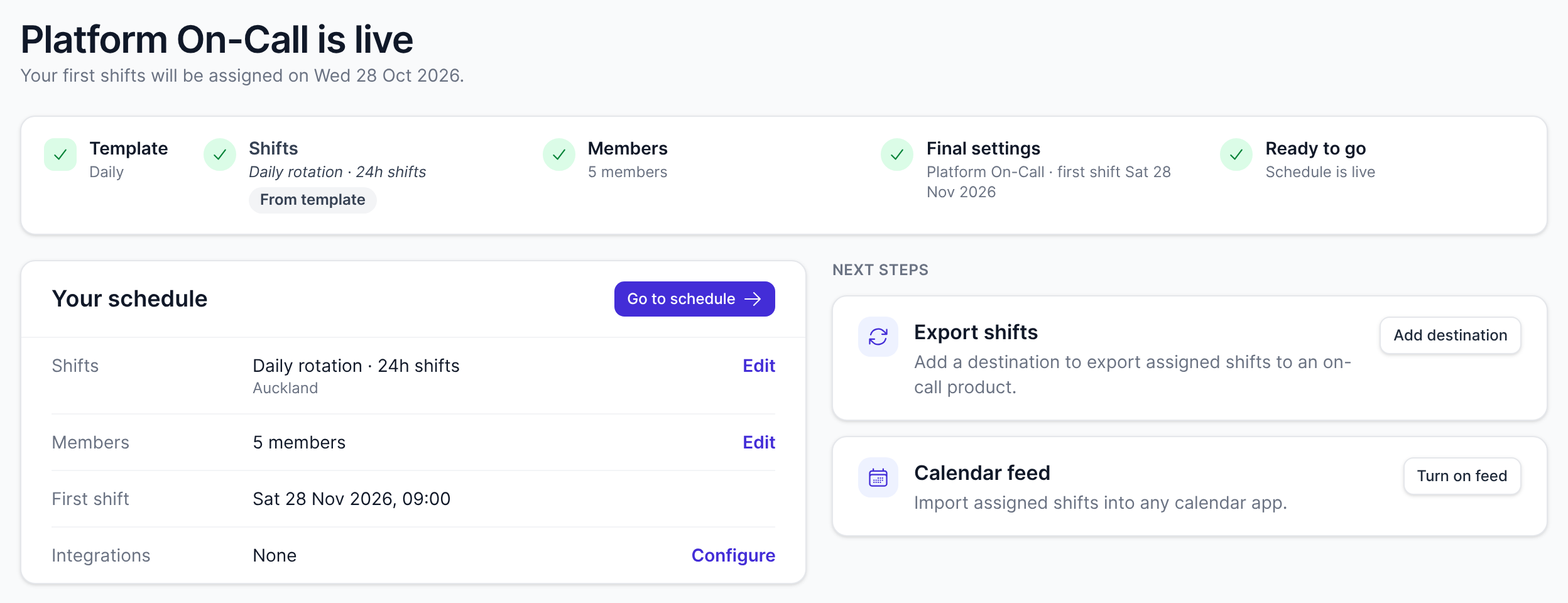
Click Go to schedule to open it.
What happens next
- Members accept their invitations and connect their calendars.
- On the first assignment date, On-Call Optimizer assigns the first shifts and confirms them automatically. Members are notified of their new shifts. See the schedule lifecycle for what happens after that.