Step 3: First assignment
Now that all members have a connected calendar, it’s time for the first shift assignment.
Background
On-Call Optimizer’s schedule lifecycle regularly assigns new shifts so that a set number of days of shifts (the horizon) into the future are always assigned.
You chose the dates for the first assignment on Final settings when you created the schedule. By default:
- The First shift is about 37 days after the schedule is created.
- The First assignment runs one day plus a horizon of 30 days before the first shift, so about 6 days after the schedule is created. This gives members time to accept their invitations and connect their calendars first.
Until the first shift, existing shifts from the schedule’s destination are imported into On-Call Optimizer as history to provide continuity.
Configuring lifecycle parameters
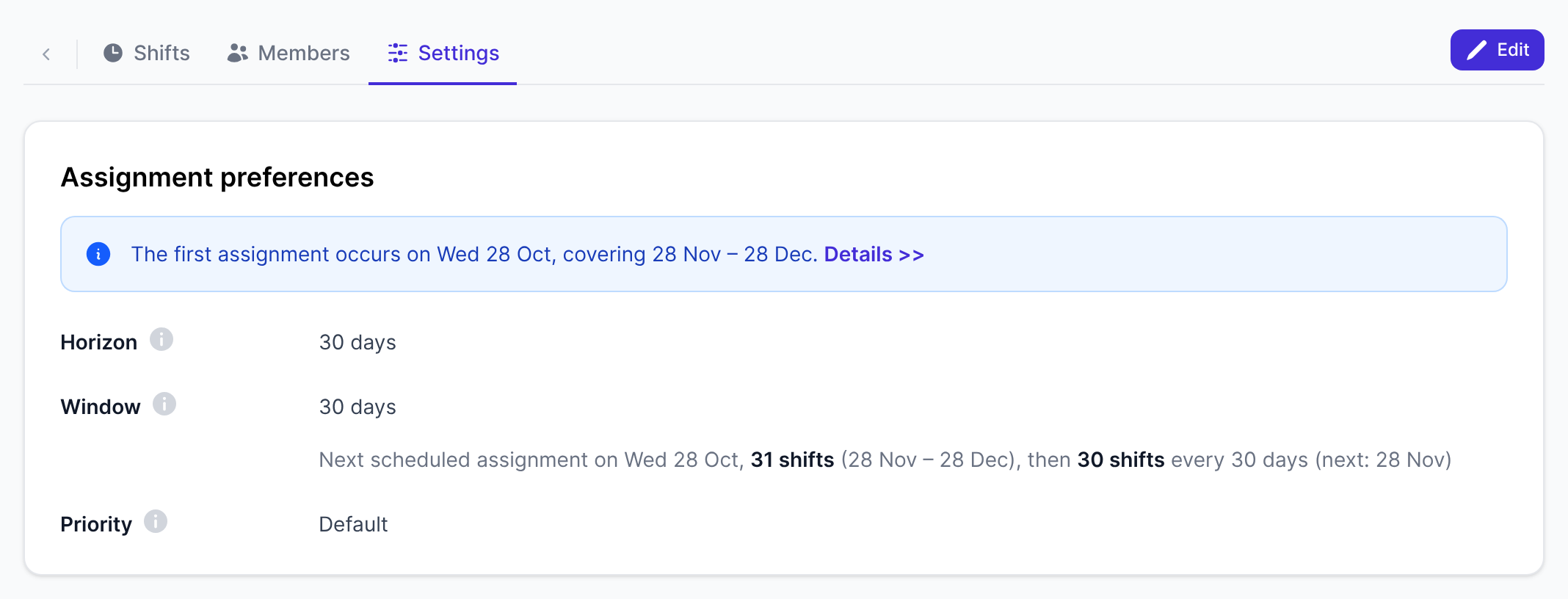
To change the horizon or window, go to Schedules → schedule → Configuration tab → template → Settings tab, and click Edit. Under Assignment preferences:
- Horizon: how far ahead shifts are kept assigned.
- Window: how many days of shifts are assigned at once.
A sentence below the fields summarises when the next assignments will run. Click Save to apply your changes.
Until the first assignment has run, the Settings tab also shows when it will occur and which days it covers. Click Details » to see it on the Timeline tab.
Previewing the first assignment
The first assignment is confirmed automatically when it runs, and its shifts are exported to your on-call product straight away. Before that date, preview it to check the shifts look right.
Here an admin previews an assignment and confirms it:
Steps in this screencast
- Click New assignment. Leave the period empty to preview the next scheduled assignment’s shifts, then click Generate.
- The preview is a draft Custom assignment. Nothing changes until it is confirmed. Hover a shift to see details and any warnings.
- On the Evaluation tab, check the penalties and how balanced the shifts are between members.
- Click Abandon to discard the preview, or Confirm to add its shifts to the schedule now.
- The shifts are now part of the schedule, and the assignment is listed on the Timeline tab.
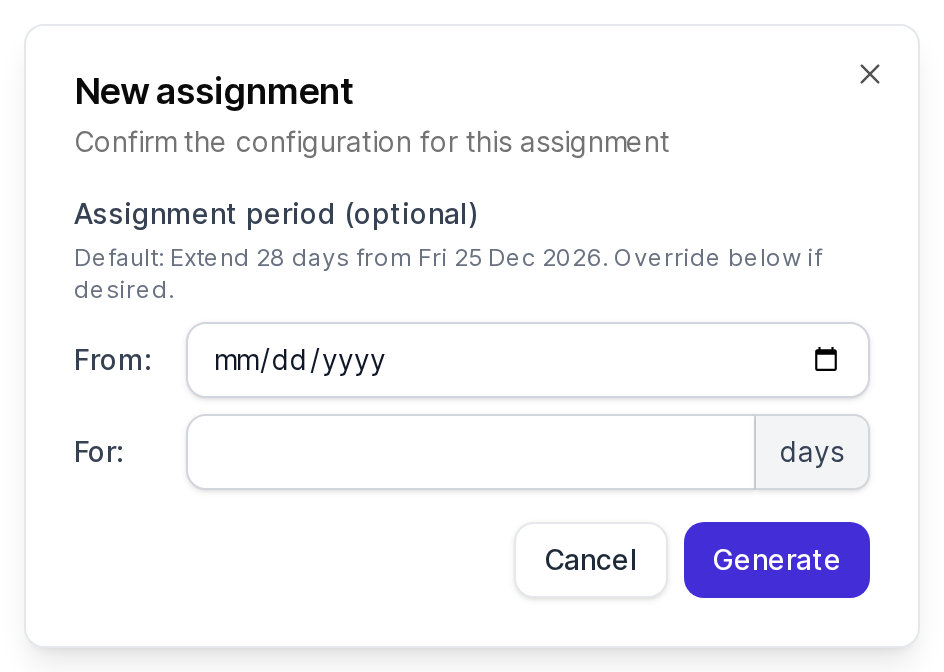
To generate a preview, click New assignment at the end of the schedule’s tabs.
- Leave Assignment period (optional) empty to assign the same shifts the first assignment would.
- Or set From and For to change the start date or length of this assignment without changing the settings for future assignments.
Click Generate. This creates a custom assignment for you to review. It is a draft, so nothing changes until someone confirms it.
You can share the URL of the new assignment with other team members so they can review it too.

On the assignment page:
- Hover over or click any shift to see its shift popup, including any warnings.
- Open the Evaluation tab to check the penalties and how balanced the shifts are between members.
When you have finished, choose one of these actions:
Abandon: deletes the preview. The first assignment still runs on its date, using the latest availability information.
Confirm: adds the shifts to the schedule now, instead of waiting for the first assignment date:
- Each member with new shifts receives a notification.
- The shifts are exported to each of the schedule’s destinations.
If the assignment needs your attention (for example, it assigns shifts to members without availability information), a Confirm assignment dialog lists the warnings for you to accept first. See confirmation options.
If the preview shows a problem, fix its cause before the first assignment date: for example, ask members to update their availability information, or change the template’s settings.
When the first assignment runs
On the first assignment date, the first scheduled assignment runs and is confirmed automatically:
- It appears on the schedule’s Timeline tab as a confirmed “Scheduled assignment”.
- Each member assigned new shifts receives a notification listing their shifts.
- The shifts are exported to the schedule’s destinations.
If it can’t be confirmed, for example because it failed, it waits at the top of the Timeline tab with a red badge and the tab shows a dot. Open it to Regenerate or Abandon it. See drafts that can’t be confirmed.
Exporting updated shifts
A schedule copied from an on-call product exports to the source schedule in Authoritative mode. Confirmed shifts are exported automatically, and the Integrations tab shows the status of each export.
If you set a destination to Manual export mode, the Integrations tab shows a dot when changes are waiting. Open the destination to see what will change, and click Synchronize to export them. See destinations.
Next steps
The schedule is now fully operational. The final step covers what On-Call Optimizer does automatically from now on.