Step 2: Connect calendars
After setting up the schedule, make sure each member has connected a calendar. The calendar provides the availability information On-Call Optimizer uses to choose which shifts to assign to them.
Member status
To see the status of each member, go to Schedules → schedule → Configuration tab → template → Members tab.
The first column shows an icon for each member’s status. Hover over an icon for an explanation, or see the schedule members docs. The main states are:
- Check mark: the member’s availability information is up to date.
- Clock: the member’s availability information is stale.
- Exclamation mark: the member hasn’t connected a calendar or other availability source.
- Question mark: the member hasn’t been invited to On-Call Optimizer yet, or hasn’t shared any availability information.
- Person: the member has been invited but hasn’t signed in to set up their account.
If any members haven’t been invited, the Configuration tab and the template’s Members tab show an orange dot. To invite them, click Edit on the Members tab, then Send invitations (organization admins only).
Target state
To begin Step 3, each assignable member needs a check mark in their status column (as in the screenshot below). This means they have signed in to On-Call Optimizer and connected a calendar to provide availability information.
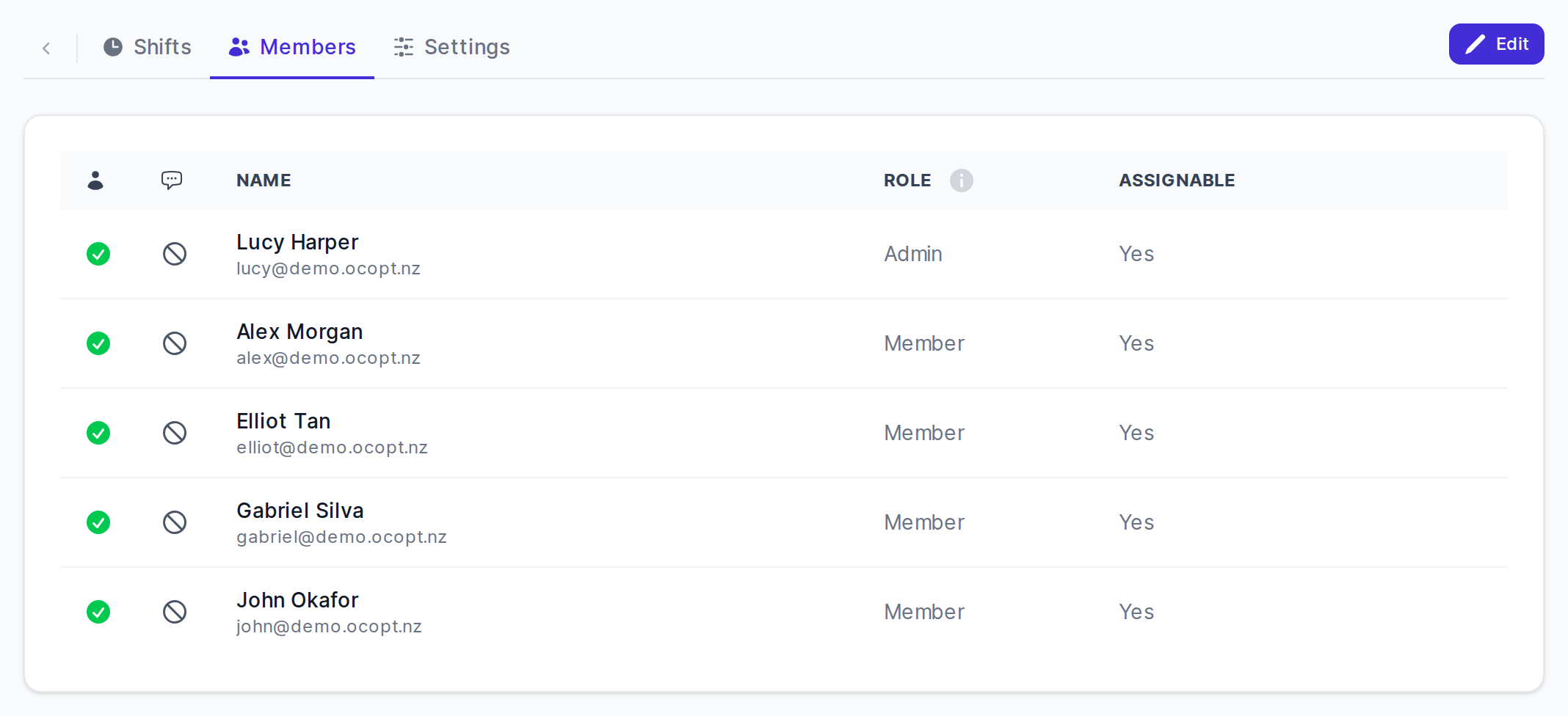
Ask members without a check mark to follow the steps below.
Responding to an invitation
- Invitations to join your organization in On-Call Optimizer arrive by email, with the subject “Invitation to join organization name”.
- The member clicks the link in the email and signs in with their Google or Microsoft account. Signing in accepts the invitation.
The user onboarding guide walks members through these steps. You can send them the link.
Connecting a calendar
- When a member without a calendar opens the Home page, a Welcome to On-Call Optimizer pop-over prompts them to connect their calendar.
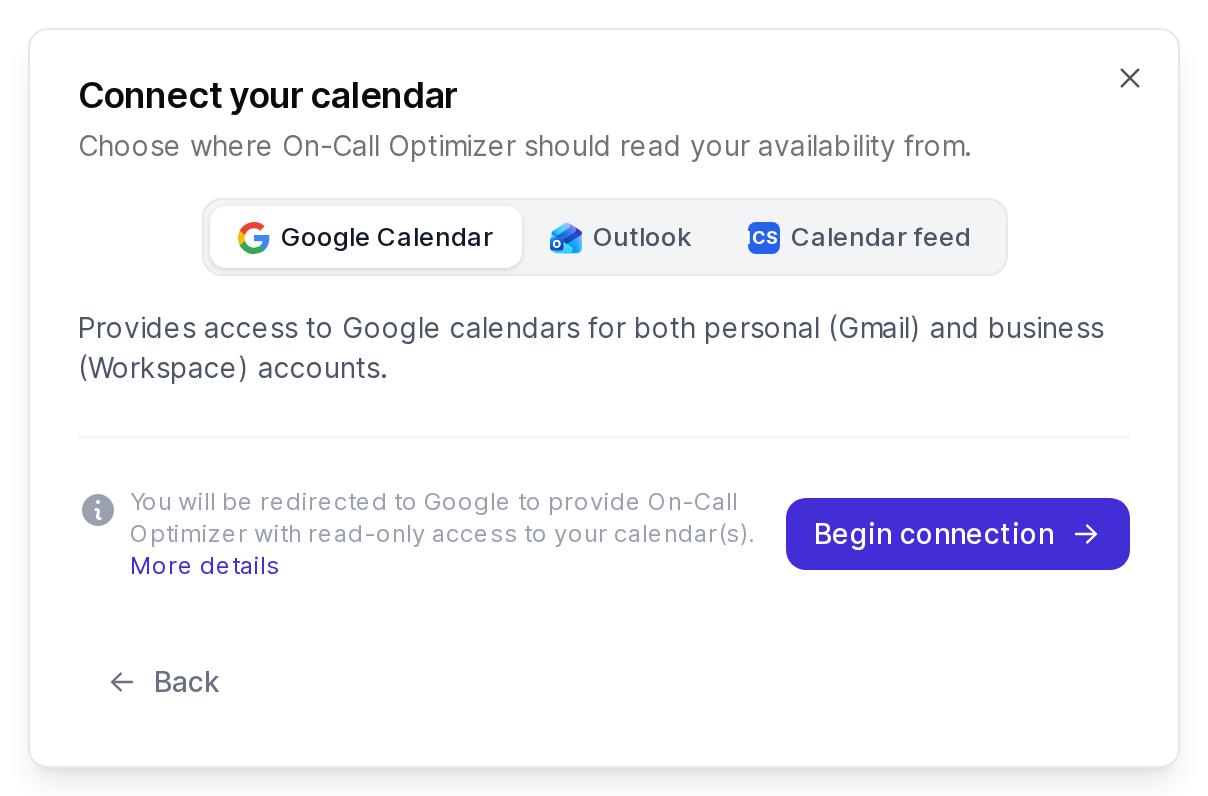
- They click Connect your calendar, choose Google Calendar, Outlook or Calendar feed, then click Begin connection (or Add URL for a calendar feed).
Authentication
After choosing Google or Outlook, the member signs in to their calendar provider and grants read-only access. For a calendar feed, they enter the feed’s URL.
For more information on the authorization or configuration process, see the calendar documentation.
Calendar selection
When the connection has several calendars, the member chooses how On-Call Optimizer uses each one.
- For each calendar, choose an option under Availability information, e.g. Create from matching events or Ignore all events.
- Click Save at the top of the page.
Calendar operation
On-Call Optimizer regularly scans connected calendars for new or changed availability information and uses the latest information to assign new on-call shifts.
For details on how to write calendar events that On-Call Optimizer recognizes, see the event filtering documentation.
Next steps
When all members have connected their calendars, you’re ready to continue.