Organization set-up
Set up your organization’s home in On-Call Optimizer.
Every user and schedule in On-Call Optimizer belongs to an organization. The details supplied by the identity provider you sign in with are used to associate each user with the correct organization.
Your organization’s name appears at the left of the top navigation bar. Click it to open the organization’s pages, with the tabs General, Members, Roles, On-call products and Messaging. Organization admins can change the organization’s name on the General tab.

Step 1: Create an On-Call Optimizer organization
To create an On-Call Optimizer organization, sign in with your chosen identity provider.
The first user to sign in to On-Call Optimizer from a particular organization creates the organization and becomes the first Organization Admin.
If you find you are signing in to an existing organization when you expected to be the first user, click the organization name in the top navigation bar and open the Members tab to see who is already in it. Existing organization admins are listed first.
Billing and subscriptions
On-Call Optimizer has a free trial.
You don’t need to set up billing until you’re using On-Call Optimizer to generate your real schedules.
We’ll get in touch before then to see how the trial is going and agree when to upgrade to a paid plan.
Once the organization has been created, the next step is to connect your existing on-call product (e.g. PagerDuty). If you don’t use an on-call product, skip to creating a schedule from a template.
Step 2: Connect to your existing on-call product
Connecting your on-call product lets On-Call Optimizer export the shifts it assigns into your existing schedules. It also speeds up setting up schedules, because you can copy an existing schedule’s shifts and members.
- Click your organization’s name in the top navigation bar, then open the On-call products tab.
- Click Add an on-call product.
- In the Select on-call product dialog, choose your product (e.g. PagerDuty). Review what will be imported, then click Begin connection.
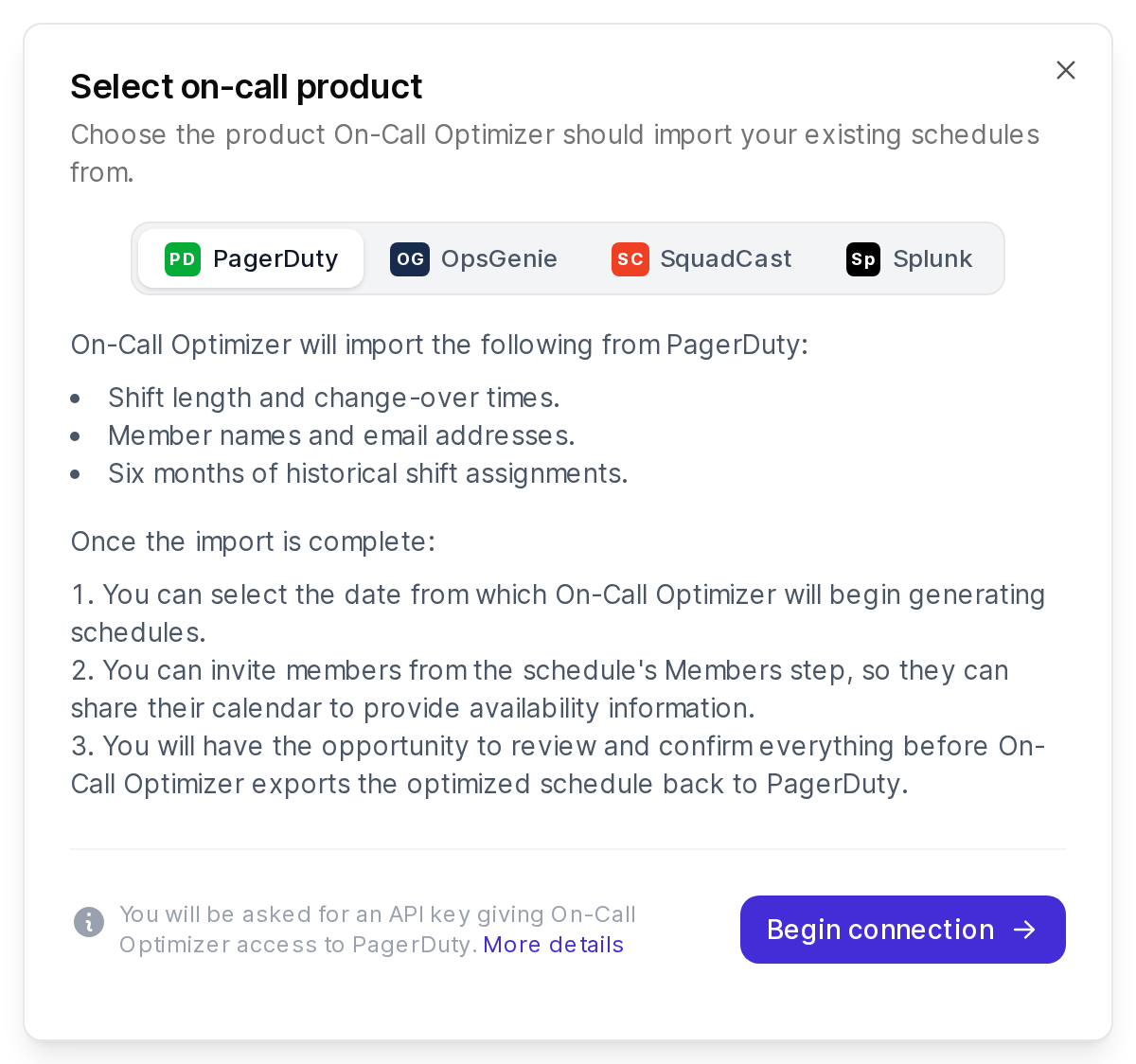
- On the Connection to product page, enter your API key (and API ID, if your product needs one), then click Save. Each supported product page explains how to create a key.
Steps in this screencast
- On your organization’s On-call products tab, click Add an on-call product.
- Choose PagerDuty and click Begin connection.
- Paste your PagerDuty API key into API key and click Save.
- On-Call Optimizer checks the key and lists your PagerDuty schedules. Status shows OK.
On-Call Optimizer fetches the schedules from your product. This may take a few moments, after which the Schedule status table lists the schedules available in the connected product.
You need permission to manage integrations in your organization to add an on-call product. See on-call product connections for details for each product.
Step 3: Integrate your first schedule
Your on-call product is connected. Next, integrate your first schedule.
You’ll do this again as more schedules move to On-Call Optimizer. The steps are in Integrate an existing schedule, which you can bookmark.
The setup itself is short, but you may need to wait for each member to sign in and connect their calendar.
Next steps
To use On-Call Optimizer across the organization, continue with:
- Roll out On-Call Optimizer across many teams
- Connect to Slack from the organization’s Messaging tab
- Integrate an existing schedule with On-Call Optimizer This is the same guide as step 3 above, which you can repeat for any additional schedules you need to integrate.
- Add additional administrators from the organization’s Members tab