Connect a calendar
In this step you connect On-Call Optimizer to the calendar you want to use to provide availability information. Here a member connects a calendar feed and sees the times they’re unavailable appear on their Home calendar. Google and Outlook work the same way, except that you sign in to Google or Microsoft to give access instead of entering a URL.
Steps in this screencast
- From the welcome pop-over on Home, click Connect your calendar.
- Choose your calendar provider. For a calendar feed, click Add URL, enter a nickname and the feed’s URL, and click Create.
- Choose how each calendar’s events are used, for example Create from matching events, and click Save.
- Your availability appears on your Home calendar. Blocked times show as Unavailable.
1. Select the desired calendar product
When you open Home without a connected calendar, a Welcome to On-Call Optimizer pop-over appears.
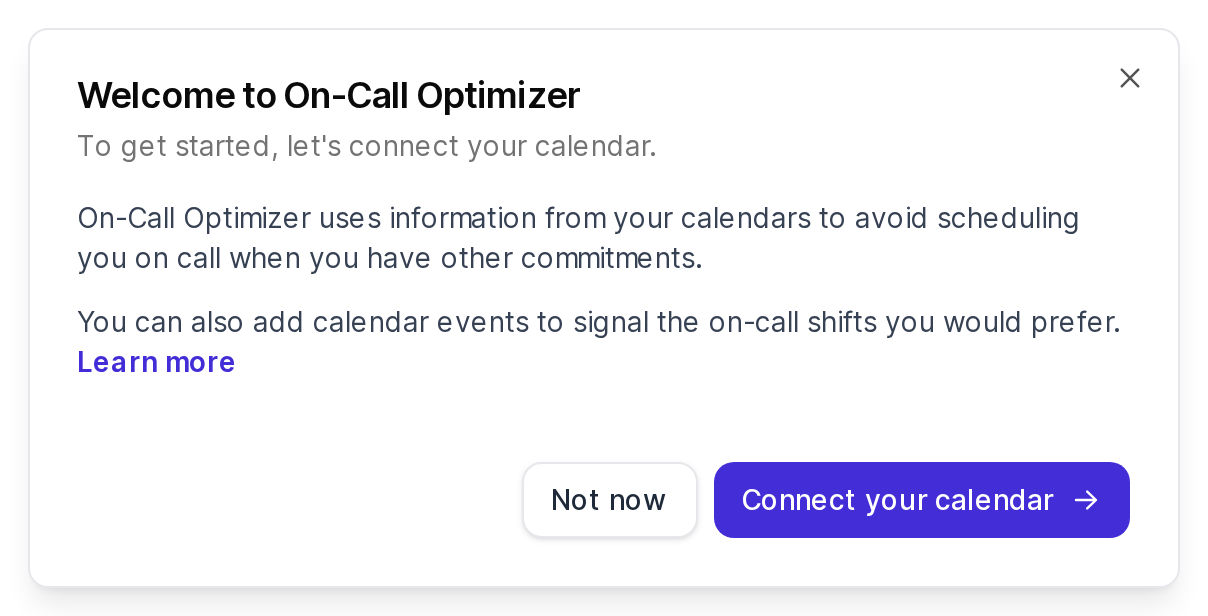
- Click Connect your calendar.
- Choose Google Calendar, Outlook or Calendar feed.
- Click Begin connection (or Add URL for a calendar feed) and complete the authorization or configuration process that follows.
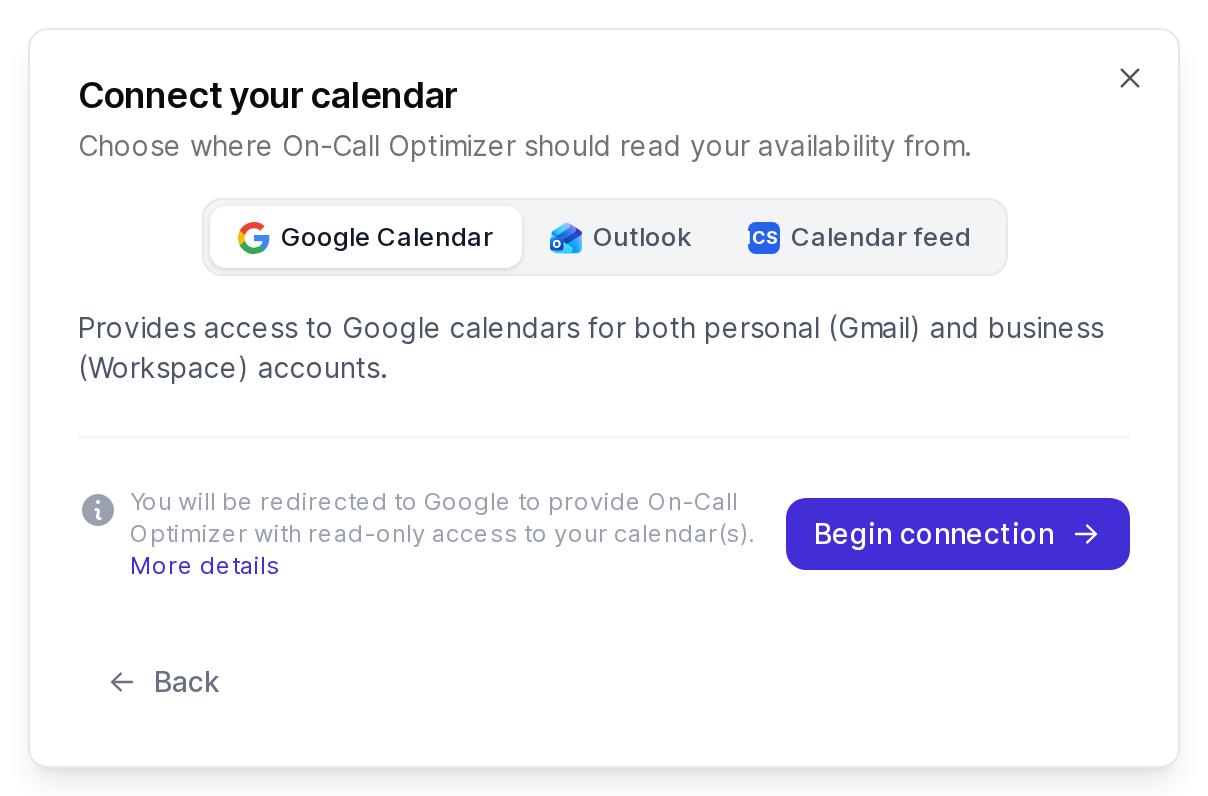
For full details of the authorization or configuration process, see the calendar documentation.
2. Choose calendars to use
When the connection has several calendars, the Edit connection page lists them so you can choose how On-Call Optimizer uses each one.
- For each calendar, choose an option under Availability Information, e.g. Create from matching events to use it, or Ignore all events to skip it.
- Click Save at the top of the page.
See calendar configuration for what each option does.
Ready to go!
Your calendar availability is shared.
On-Call Optimizer checks your calendar regularly and uses the latest availability when it assigns shifts.
See event filtering for how to write events that On-Call Optimizer recognizes.