Notifications
Email and Slack notifications, and how to choose what you receive.
Every user can be notified by email. Once the organization has connected a Slack workspace, notifications can also go to Slack.
User notification preferences
- Email is the default.
- Connecting a Slack account switches that person’s default to Slack.
- For each notification type you can choose email, Slack (once your account is linked), or both. The notifications reference lists every type and who receives it.
Changing notification preferences
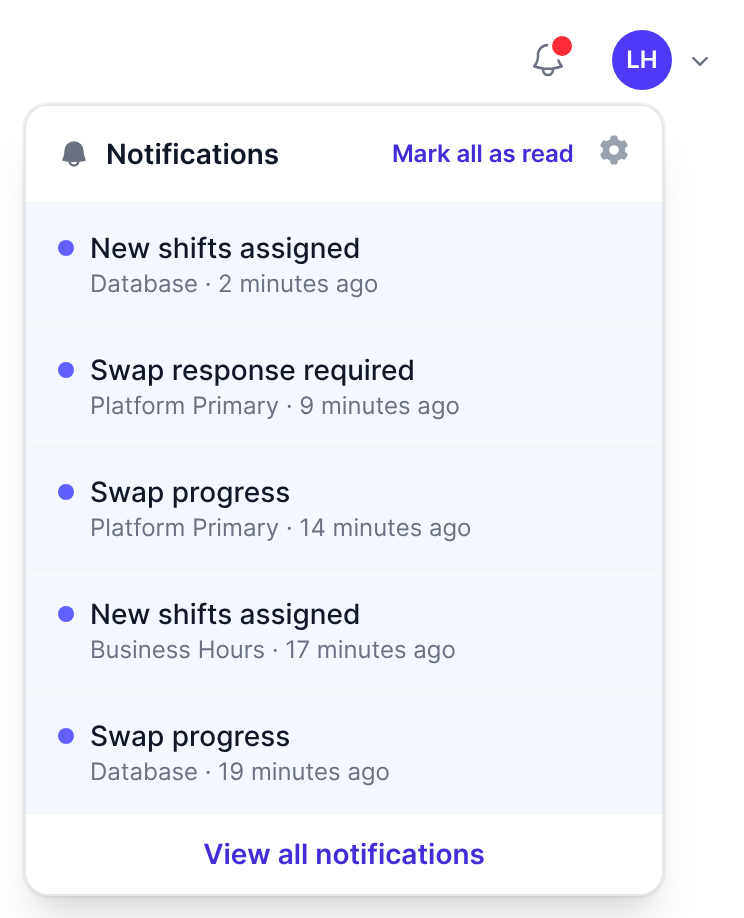
- Click the bell icon (Open notifications) at the top right of the top navigation bar.
- Click the cog icon (Notification preferences) at the top of the Notifications menu.
- In the Notification preferences panel, turn each notification type on or off in the Email and Slack columns.
- Click Save preferences, or Cancel to close the panel without saving.
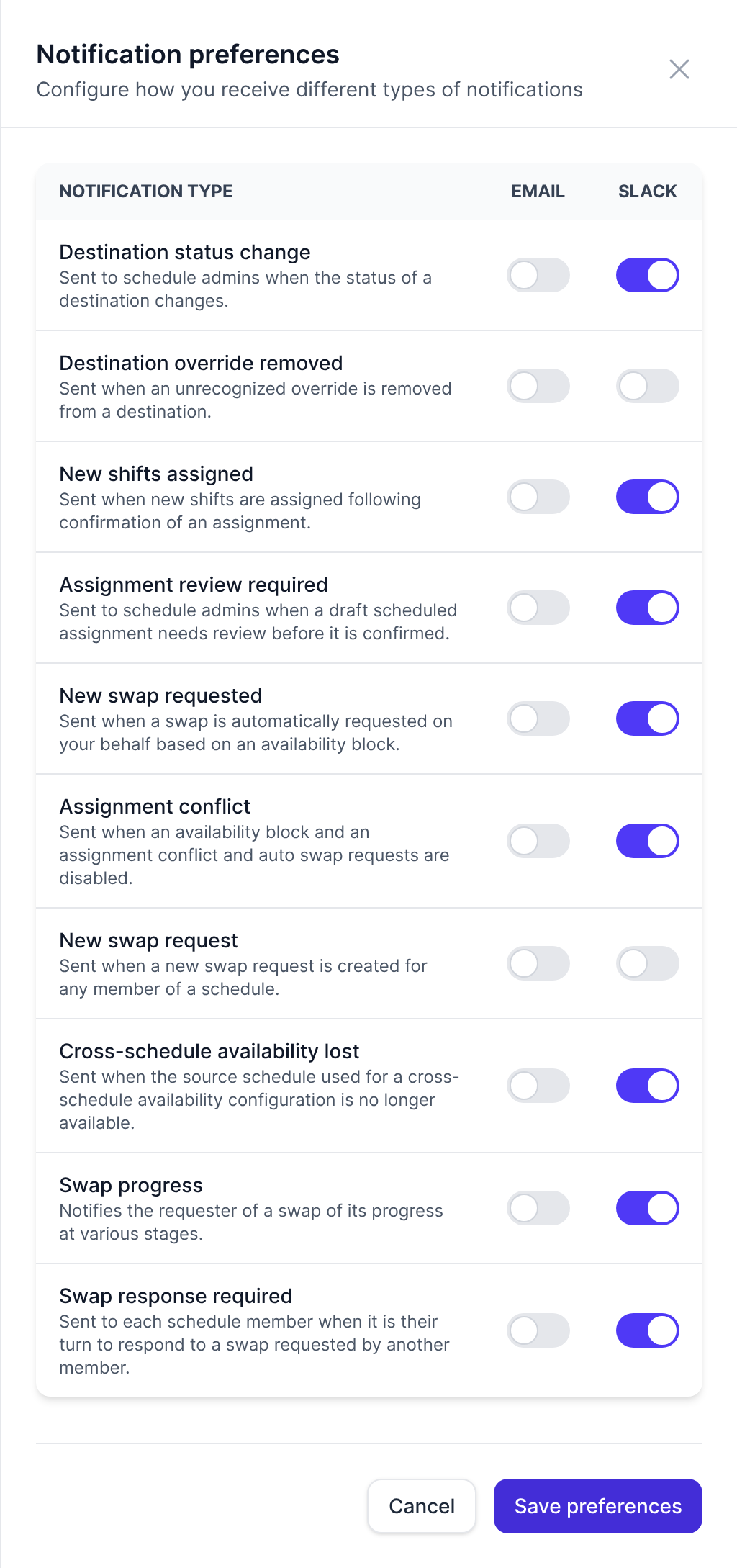
The toggles in the Slack column can only be changed once you have connected your Slack account to your On-Call Optimizer account.
Schedule notification preferences
- Your notification preferences apply to every schedule you belong to.
- A schedule linked to a Slack channel chooses which notifications that channel receives with notification commands to the
@On-Call Optimizerbot.
Last updated October 22, 2026