Schedule balance
Understand how On-Call Optimizer balances shifts across members
Balancing shifts between the members of a schedule is one of the main goals of On-Call Optimizer.
A schedule is balanced when each member has a share of the shifts that is proportional to how long they have been on the schedule.
So members’ targets often differ. Members who joined at about the same time have similar targets, while members who joined later have lower targets.
Balance is shown in the Member balance section of two pages:
- The schedule’s Reports tab shows the live balance of the schedule.
- The Evaluation tab of an assignment page shows a snapshot of how that assignment changed, or will change, the balance when it is confirmed.
Summary
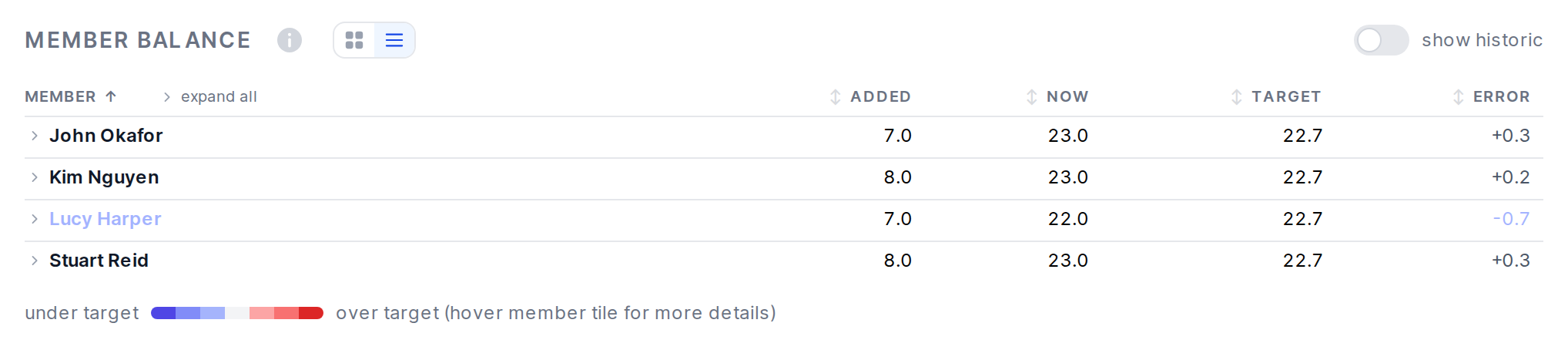
The Member balance section has two views. Use the buttons beside its heading to switch between them:
- Cards view shows a card for each member with how far they are from their target. Members over their target are tinted red. Hover over a card for details.
- Table view shows the numbers in a table, as described below. Click a column heading to sort by it, and click a member (or expand all) to see their numbers for each shift type.
Tick show historic to include members who have left the schedule and shift types that are no longer configured.
Older assignments
Previous, New and Excess columns instead of the columns described below.Live balance
The live balance of a schedule is shown on its Reports tab: Schedules → schedule → Reports. Above the member balance, the tab shows the schedule’s penalties and contributing costs, as described in assignment quality, and at the end when they were calculated. For each member, the table view shows:
Completed: the number of shifts the member has already done. A shift in progress counts as completed.Upcoming: the number of confirmed future shifts for the member.Total: completed plus upcoming shifts.Target: the number of shifts the member should have, based on the number of assignable members and when each joined.Error: how far the member’s total is from their target. A positive number means more shifts than their target.
Assignment snapshot balance
The impact of a single assignment on the balance can be seen on its Evaluation tab, both before and after it is confirmed. The table is similar to the live balance, with these columns:
Added: the number of shifts this assignment gives the member.Now: the member’s total number of shifts once the assignment is confirmed.Target: the number of shifts the member should have when the assignment is confirmed.Error: how far the member’s total is from their target.
Unlike the live balance, these numbers are a snapshot of the schedule at the time the assignment was generated or confirmed.
On the Alternatives tab, the balance of each alternative is compared with the best assignment.
Member targets
Where member targets are enabled for your schedule, you can give a member a Target percentage on the template’s Members tab, for example for someone who works part-time. A target of 0% means the member isn’t assigned shifts. To correct members’ targets for a past period, click Override member targets in the Member balance section of the Reports tab.
Shift types
Balance is calculated separately for each type of shift in the schedule. Shift types come from the schedule’s shift configuration: the day and time the shift starts and how long it lasts. The role (primary, secondary) is also part of the shift type, so members get a fair share of each role.
Shift accounting
The balance numbers count shifts of each type, so they can stand for different lengths of time. For a daily shift, 1.0 means 24 hours. For a weekly shift, 1.0 means 168 hours.
Fractions of shifts are common, for example:
- When the number of shifts doesn’t divide evenly between the members.
- When swaps or other changes mean a member did only part of a shift.
Window size
Balance is calculated from the earliest shift in the history window (6 months in the past) up to the last future shift that has been assigned.
So even on the page of an assignment covering only a few days, the balance shown is for the schedule over the whole window.